
If your iPhone not starting, it can feel confusing and stressful. You press the power button, but nothing happens. The screen stays black, and you don’t know what to do next. The good part is, this problem is very common, and in many cases, you can fix it yourself at home.
This guide will help you step by step in very simple language. Just follow each step slowly.
What does iPhone not starting mean?
When we say iPhone not starting, it means your phone is not turning on at all. The screen is black, there is no Apple logo, and the phone is not responding. Sometimes it may look completely dead, but actually it just needs a simple fix.
Why your iPhone not starting
There are some common reasons behind iPhone not starting.
- The battery may be fully drained.
- Your charger or cable may not be working.
- There may be a small software issue.
- Your phone might be stuck or frozen.
- Or there could be damage from falling or water.
Now let’s fix it step by step.
Step 1: Try a simple power button press
First, press and hold the power button for around 10 to 15 seconds. Sometimes your phone just needs a little push to start again.
If your iPhone not starting even after this, move to the next step.
Step 2: Charge your iPhone properly
Most of the time, iPhone not starting happens because the battery is fully empty.
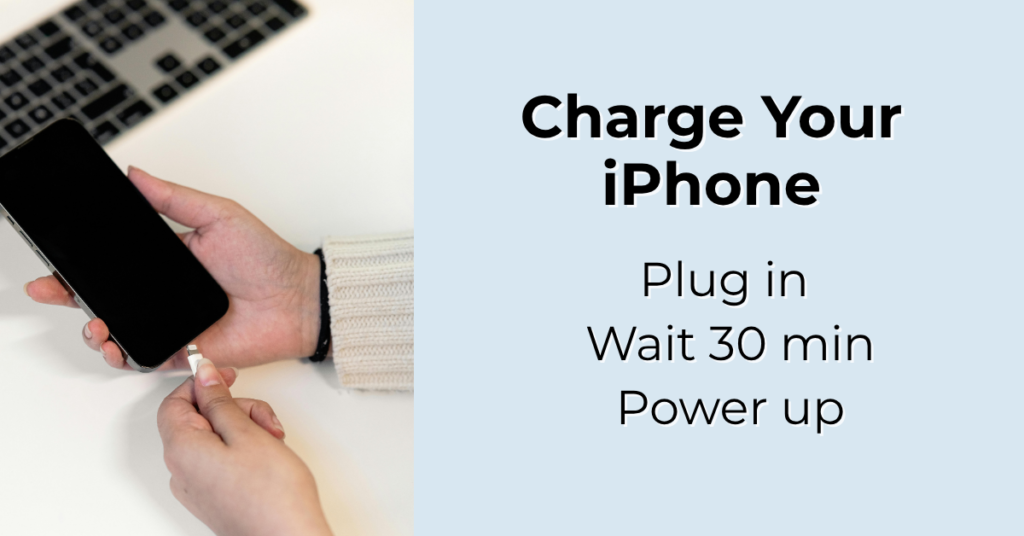
Plug your iPhone into a charger and leave it for at least 20 to 30 minutes. Do not remove it quickly. Even if you don’t see anything on the screen, let it stay connected.
Make sure your cable and adapter are working. If possible, try another charger. After waiting, try turning your phone on again.
Step 3: Check for charging sign
While charging, look carefully at your screen. You may see a battery icon or a charging symbol. This means your phone is getting power.
If you see this, your iPhone not starting problem may just be due to low battery, and you only need to wait a bit more.
Step 4: Force restart your iPhone
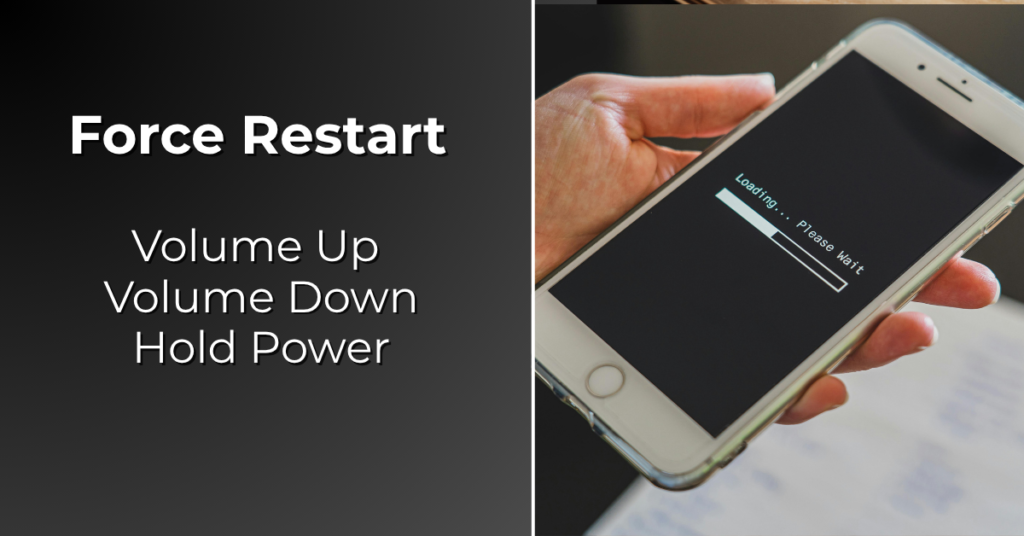
If your iPhone not starting, a force restart can fix small system problems. It refreshes your phone.
For newer models like iPhone 13, iPhone 14, and iPhone 15, press Volume Up once, then Volume Down once, then press and hold the power button until the Apple logo appears.
For iPhone 7, press and hold the Volume Down button and the power button together.
For older models like iPhone 6s, press and hold the Home button and the power button together.
Hold the buttons for around 10 to 20 seconds. Do not release too early.
Step 5: Check your charger and charging port
Sometimes your phone is fine, but the charger is the problem.
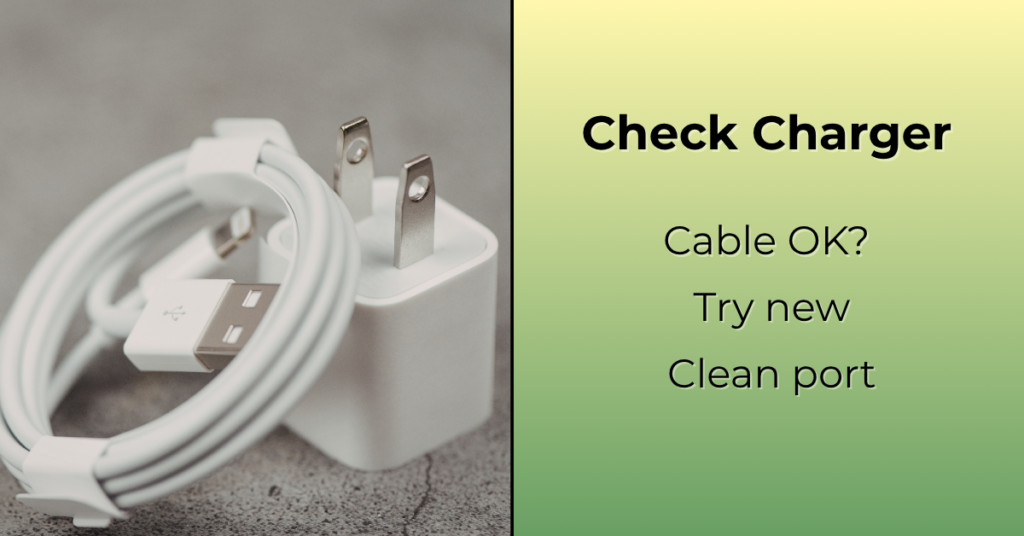
If your iPhone not starting, check your charging cable for damage. Look at the charging port and see if there is dust or dirt inside. Clean it gently.
Try using another cable or adapter if you have one. This simple check can save a lot of time.
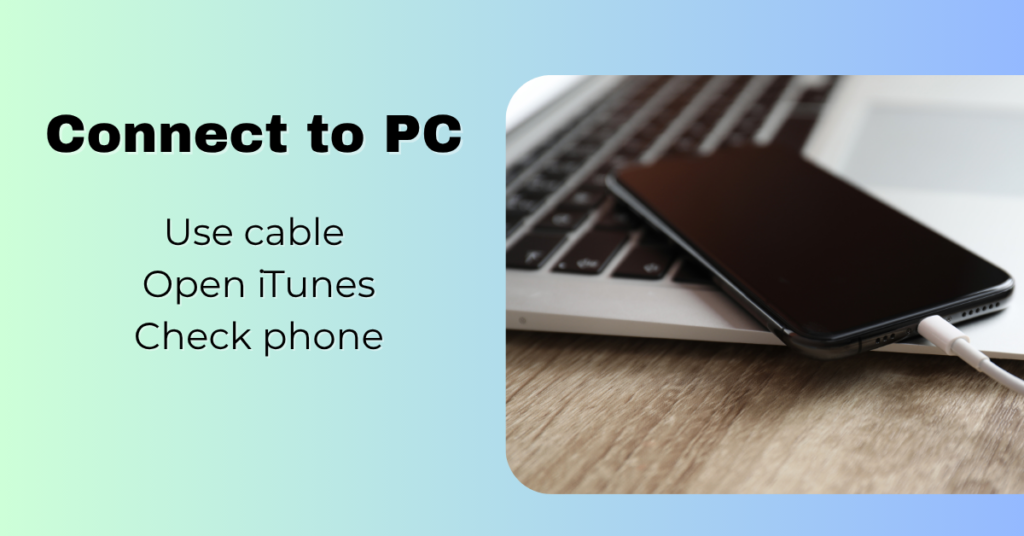
Step 6: Connect your iPhone to a computer
If your iPhone not starting even now, connect it to a computer.
You can use iTunes or Finder.
Once connected, check if your phone is detected. If yes, you may see an option to update or restore your device. Always try update first, because it keeps your data safe.
Step 7: Use recovery mode
If your iPhone not starting, recovery mode can help fix deeper software problems.
Connect your iPhone to the computer. Then do the force restart steps, but keep holding the button even after the Apple logo appears until you see the recovery screen.
You will see options like update and restore. First choose update. If update does not work, then you can try restore.
Step 8: Try DFU mode (advanced step)
If nothing is working and your iPhone not starting, you can try DFU mode. This is a deeper reset.
But remember, this step can erase your data. So only try it if you are okay with that or if other steps have failed.
Step 9: Check for physical damage
If your iPhone not starting, think about what happened before the issue.
Did your phone fall?
Did it get wet?
If yes, then there may be hardware damage. In such cases, home fixes may not work.

Step 10: Get professional help
If you tried all steps and still your iPhone not starting, it is better to get expert help.
You can visit an Apple service center. They can check your battery, screen, and internal parts and tell you the exact problem.
Tips to avoid iPhone not starting problem
To avoid facing iPhone not starting again, keep your phone charged and do not let it go to zero too often. Always use a good quality charger. Keep your phone updated and protect it from water and drops.
Final thoughts
If your iPhone not starting, don’t panic. Most of the time, it is a small issue like battery or a simple software problem.
Just follow each step slowly and properly. In many cases, your phone will start working again without any big repair.
And if it still does not work, getting help from a professional is always the safest option.
People Also Loved To Read – iPhone Screen Is Not Working – Easy Fix Guide (Simple Steps Anyone Can Follow)
Your digital success starts here! Explore Pabale Digital today!