
iPhone 17 Not Charging? Don’t Panic
If your iPhone 17 not charging, you are not alone. Many people face this problem at some point. Sometimes the phone does not charge at all. In other cases, it charges very slowly or keeps connecting and disconnecting from the charger.
The good news is that this problem is often easy to fix. You do not always need to visit a service center or buy a new charger. A few simple checks can help you find the real reason behind the problem.
In this guide, we will explain why your iPhone 17 not charging, what causes it, and the easiest ways to fix it. Everything is explained in very simple English so anyone can follow the steps.
Why Is My iPhone 17 Not Charging?
There can be many reasons why your iPhone 17 not charging. Some problems are very small, while others may need professional repair.
Here are the most common reasons:
- Dirty charging port
- Damaged charging cable
- Faulty charger or power adapter
- Loose charging connection
- Software bugs
- Battery health issues
- Phone getting too hot
- Water or moisture inside the charging port
- Hardware damage
Before you worry, try the simple fixes below.
Check Your Charging Cable
The charging cable is one of the most common reasons behind an iPhone 17 not charging issue.
Look carefully at the cable. If you see cuts, broken ends, bent connectors, or damaged wires, the cable may no longer work properly.
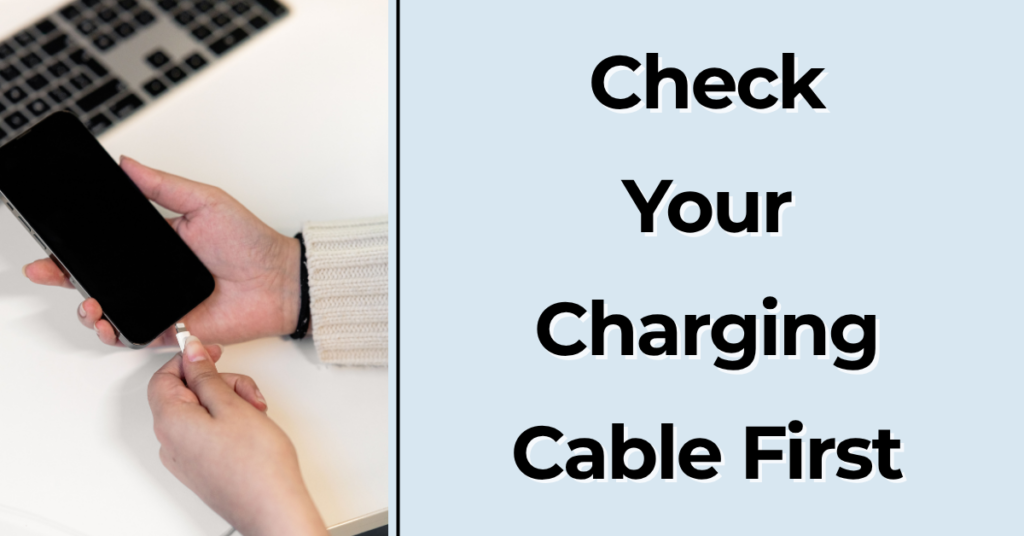
Even if the cable looks fine from the outside, it may still have internal damage.
Try charging your phone with another good-quality cable. If your phone starts charging normally, then the old cable was the problem.
Avoid using very cheap charging cables because they may stop working quickly or charge your phone slowly.
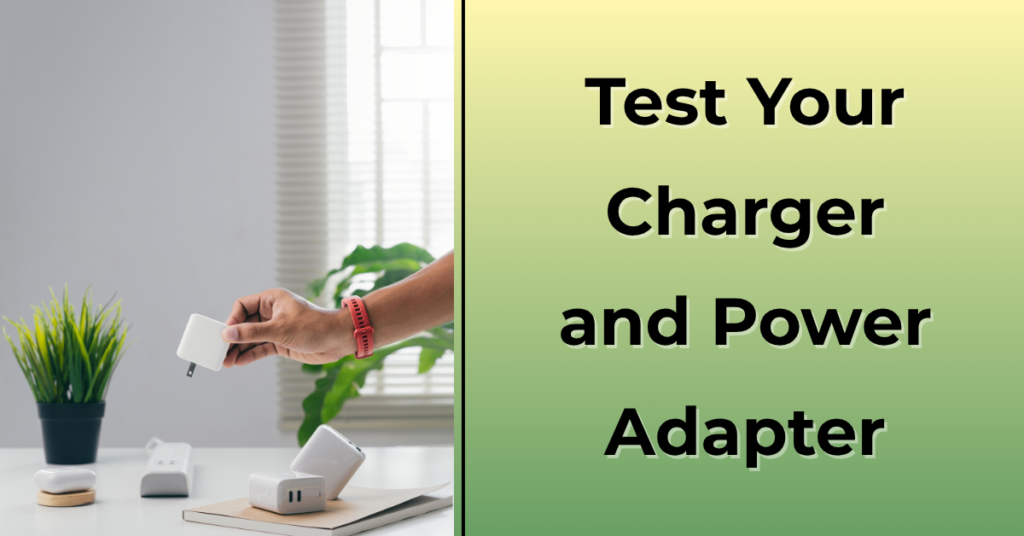
Check the Charger Adapter
Sometimes the cable is not the problem. The charger itself may not be working.
Try these simple steps:
- Use another wall adapter.
- Plug the charger into a different power socket.
- Charge another phone with the same charger.
- If another phone also does not charge, replace the charger.
Using a good-quality charger helps your phone charge safely and properly.
Clean the Charging Port
Dust and pocket lint can slowly collect inside the charging port.
When this happens, the charging cable cannot make proper contact with the phone. As a result, your iPhone 17 not charging even though the charger is connected.
Look inside the charging port using a flashlight.
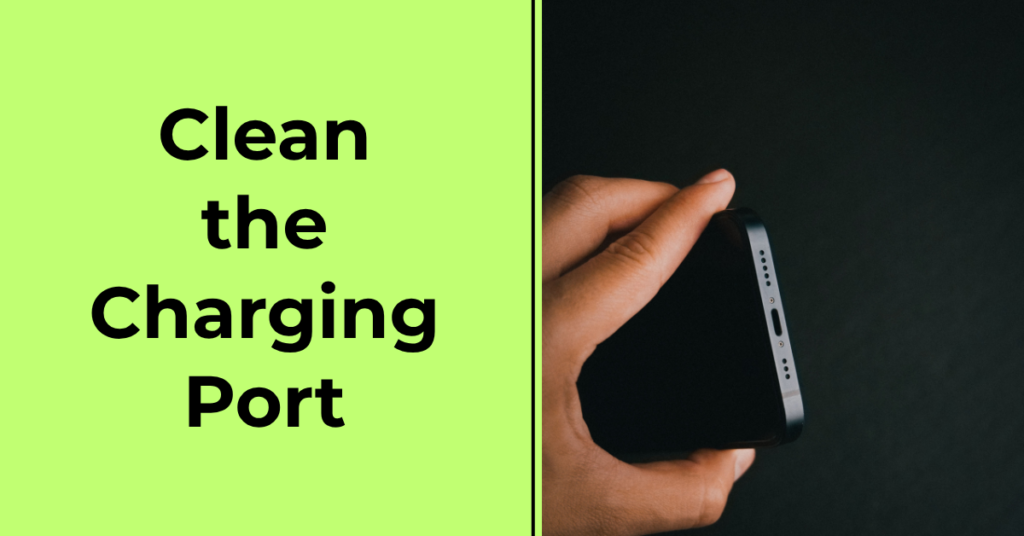
If you notice dust or dirt, gently clean it using a soft brush or a wooden toothpick.
Never use sharp metal objects because they can damage the charging port.
After cleaning, connect the charger again and check if the phone starts charging.
Restart Your iPhone 17
Sometimes the charging problem is caused by a temporary software issue.
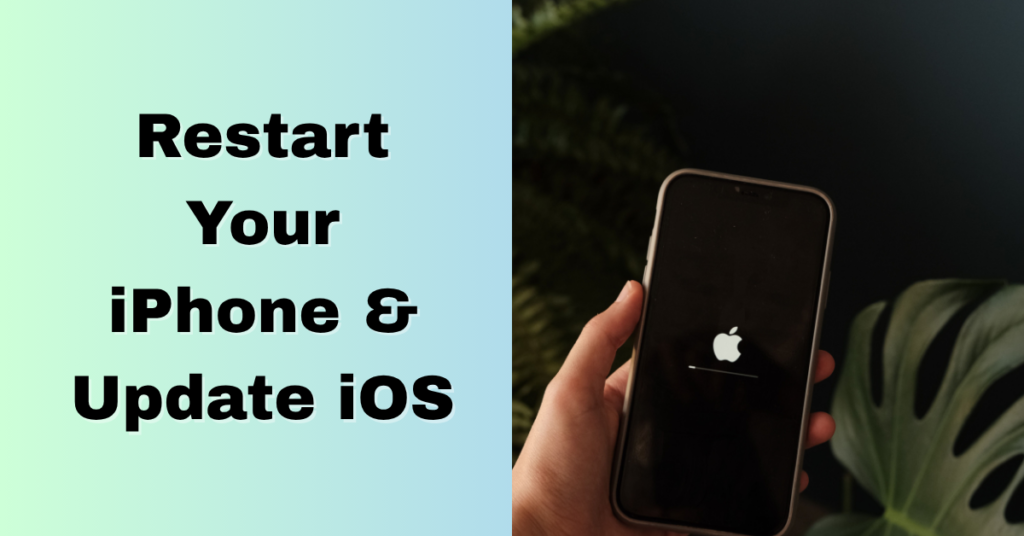
A simple restart can fix many small problems.
To restart your iPhone 17:
- Press and hold the side button and the volume button.
- Move the power slider.
- Wait for the phone to switch off.
- Turn it back on after a few seconds.
Now connect the charger again.
Many users find that a restart solves the iPhone 17 not charging problem.
Check for Software Updates
Apple regularly releases software updates that fix bugs and improve performance.
If your phone has an older version of iOS, it may sometimes create charging problems.
To check for updates:
- Open Settings.
- Tap General.
- Tap Software Update.
- Install any available update.
Once the update finishes, charge your phone again.
Keeping your phone updated also improves battery performance and overall stability.
Make Sure the Phone Is Not Too Hot
Your iPhone has built-in protection against overheating.
If the phone becomes very hot, it may stop charging until the temperature becomes normal.
This often happens when:
- The phone is left in direct sunlight.
- Heavy games are running.
- Video recording continues for a long time.
- The phone is used while charging.
If your iPhone 17 not charging, let it cool down naturally.
Move it to a cooler place and wait for a few minutes before charging again.
Avoid placing it inside a refrigerator or freezer because sudden temperature changes can damage the phone.
Check for Moisture
Modern smartphones have moisture detection to protect the charging port.
If water enters the charging port, charging may stop until the port becomes completely dry.
If you recently dropped your phone in water or used it in the rain, disconnect the charger immediately.
Keep the phone in a dry place and allow the charging port to dry naturally.
Do not use a hair dryer because hot air can damage internal parts.
Once the port is fully dry, charging should return to normal.
Try Wireless Charging
If your iPhone 17 not charging through the cable but supports wireless charging, try placing it on a compatible wireless charger.
If wireless charging works, the battery is likely fine.
This usually means the issue is with:
- Charging cable
- Charging adapter
- Charging port
Wireless charging can also help you continue using the phone until the charging port is repaired.
Check Battery Health
A battery becomes weaker over time.
If the battery has completed many charging cycles, it may not charge properly or may lose power quickly.
You can check battery information from the phone settings.
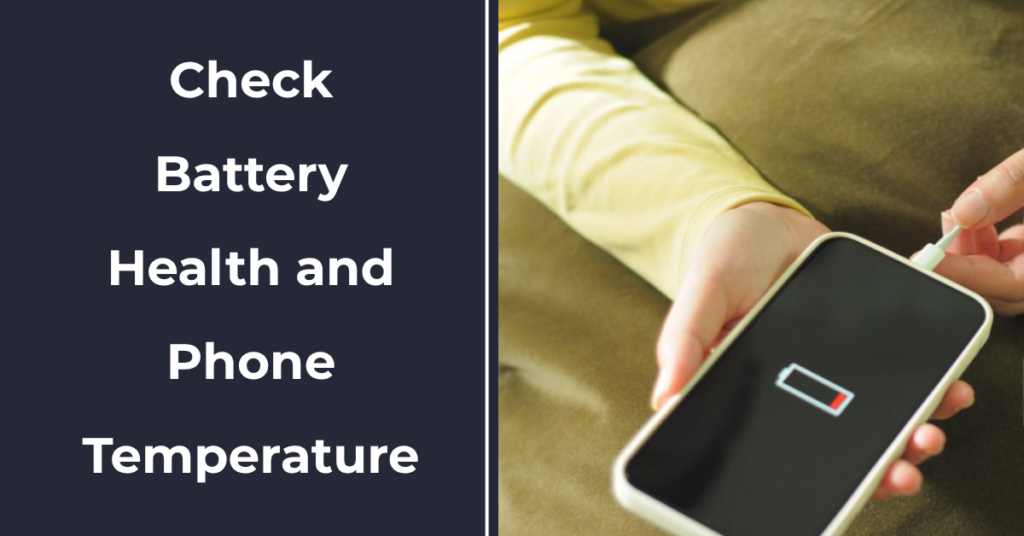
If the battery health is very low, replacing the battery may solve the charging problem.
A healthy battery also gives longer backup and better overall performance.
Force Restart the Phone
If your screen is frozen and your iPhone 17 not charging, a force restart may help.
This method refreshes the system without deleting your personal data.
After the phone restarts, connect the charger again and check if charging has started.
This simple step often fixes software-related charging issues.
Remove Thick Phone Covers
Some phone cases are too thick around the charging port.
They stop the charging cable from going fully inside the port.
Remove the phone case and try charging again.
If charging starts immediately, consider using a better-fitting case.
Avoid Using the Phone While Charging
Using your phone heavily while charging creates extra heat.
This can slow down charging or even stop charging for some time.
For faster charging:
- Lock the screen.
- Avoid gaming.
- Close unnecessary apps.
- Turn on Airplane Mode if possible.
These small changes can improve charging speed.
People Also Loved To Read – iPhone Screen Is Not Working – Easy Fix Guide (Simple Steps Anyone Can Follow)
Your digital success starts here! Explore Pabale Digital today!