
If you’re switching from an Android device to a new iPhone, one of the most important steps is transferring your address book. This guide will walk you through the process of moving your contacts from an Android device to an iPhone, making the transition as smooth as possible. We will explore three simple methods: using the “Move to iOS” app, transferring via SIM card, and syncing contacts through a Google account.
How to transfer address book from Android to iPhone
1. Using the “Move to iOS” App
The “Move to iOS” app is a tool created by Apple to help Android users seamlessly transfer their data, including contacts, to an iPhone. It’s a straightforward and reliable method to transfer contacts from Android to iPhone.
Steps to Transfer Contacts via “Move to iOS”
- Install “Move to iOS”:
- Download the “Move to iOS” app from the Google Play Store on your Android device. Once installed, open the app and accept the terms and conditions.
- Prepare Your iPhone:
- During the initial setup of your iPhone, navigate through the Setup Assistant until you reach the “Move Data from Android” option. If you’ve already set up your iPhone, you’ll need to reset it to access this option, as the “Move to iOS” app can only be used during the initial setup.
- Enter Code and Transfer Data:
- On your Android device, you’ll be prompted to enter a code. This code is displayed on your iPhone. Enter the code into the Android device, and a Transfer Data screen will appear.
- Select Data to Transfer:
- Choose the data you want to transfer. For transferring just the contacts, select the respective option. If you want to move other data like photos and videos, select those as well.
- Complete the Transfer:
- Ensure both devices are connected to a power source and left untouched while the transfer is processing. The duration depends on the amount of data being transferred but typically takes up to 30 minutes.
This method is convenient as it not only transfers contacts but also other important data from your Android to your iPhone, making the switch comprehensive and easy.
2. Transferring Contacts via SIM Card
If your new iPhone supports a physical SIM card, you can use it to transfer your contacts. This method is useful for those who prefer not to use cloud-based solutions.
Steps to Transfer Contacts via SIM Card
- Export Contacts to SIM:
- On your Android device, open the Contacts app. Go to the menu (often represented by three horizontal lines) and select “Manage contacts.” Choose the option to “Import or export contacts” and then select “Export to SIM card.” This action copies your contacts to the SIM card.
- Insert SIM into iPhone:
- Remove the SIM card from your Android device and insert it into your iPhone. If your iPhone uses an eSIM and you do not have a physical SIM slot, this method won’t be applicable, and you’ll need to use one of the other methods.
- Import SIM Contacts:
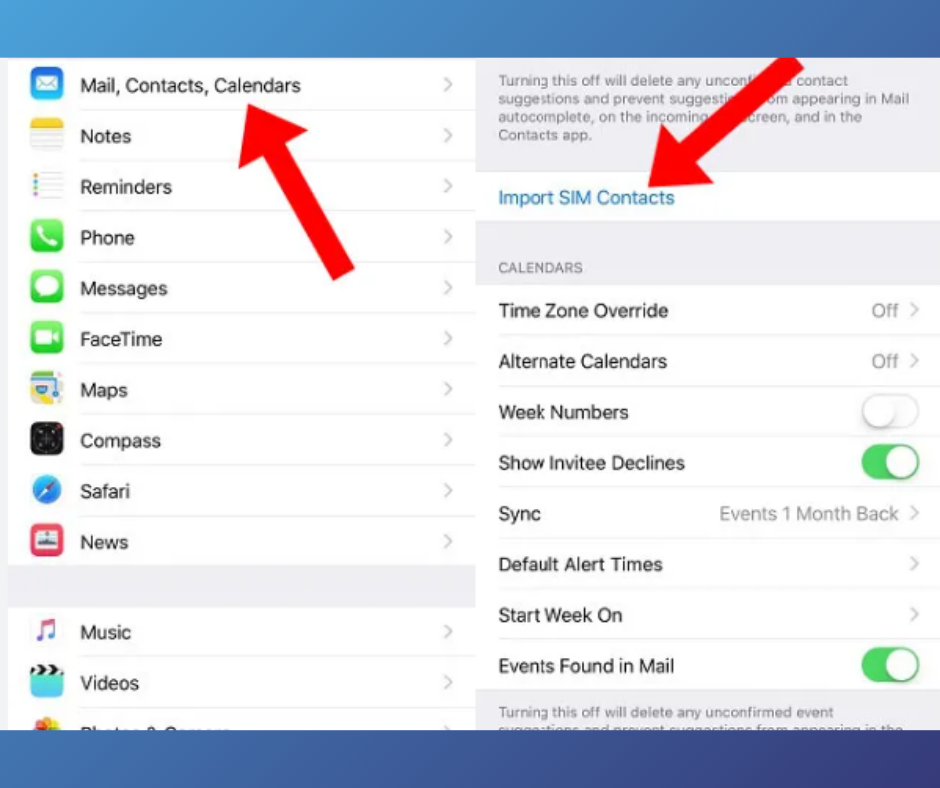
- On your iPhone, go to Settings > Contacts > Import SIM Contacts. This will import all the contacts stored on the SIM card into your iPhone’s contacts list.
This method is straightforward but may have limitations if your SIM card cannot store a large number of contacts or if your iPhone uses an eSIM.
3. Using a Google Account to Transfer Contacts
Another effective way to transfer contacts from Android to iPhone is through a Google account. This method requires internet access and is ideal for those who use Google services.
Steps to Transfer Contacts via Google Account
- Sync Contacts with Google Account:
- On your Android device, go to Settings and look for the Google tab. Tap on “Backup” and ensure that the “Contacts” option is turned on. This syncs your contacts to your Google account.
- Set Up Google Account on iPhone:
- On your iPhone, go to Settings > Mail > Accounts > Add Account. Select Google and sign in with the same Google account used on your Android device.
- Sync Contacts:
- After signing in, ensure that the Contacts option is enabled. This will automatically sync the contacts from your Google account to your iPhone.
This method is efficient and does not require a SIM card. It’s also useful if you frequently switch between devices or if you want to keep your contacts synced across different platforms.
Final Considerations
Transferring contacts from Android to iPhone can seem daunting, but with these methods, it becomes a manageable task. Whether you choose the “Move to iOS” app, a SIM card, or a Google account, each method has its advantages. The “Move to iOS” app is comprehensive, allowing the transfer of various types of data. The SIM card method is simple and quick, though it may have limitations based on the capacity of the SIM card and the type of iPhone. Using a Google account is seamless for those already integrated into Google’s ecosystem and provides a cloud-based solution.
Tips for a Smooth Transition
- Backup Your Data: Always ensure your data is backed up before beginning the transfer process. This can prevent data loss in case something goes wrong.
- Stable Internet Connection: If using the “Move to iOS” app or Google account, make sure both devices are connected to a stable Wi-Fi network.
- Keep Devices Charged: Ensure both your Android device and iPhone are fully charged or connected to power sources during the transfer process.
- Check Compatibility: Verify that the method you choose is compatible with your specific iPhone model, especially if using a SIM card.
Switching from Android to iPhone doesn’t have to be stressful. By following these steps, you can easily transfer your contacts and start enjoying your new iPhone without losing any important information. Remember, the key to a successful transfer is preparation and choosing the method that best suits your needs.
People Also Loved To Read – Can an iPhone be hacked
For news updates, visit – Daily News 24×7