
In today’s digital landscape, the security of our personal devices, particularly smartphones like the iPhone, has never been more critical. These devices store a significant amount of sensitive information, making them prime targets for cybercriminals. If you’ve ever had a suspicion that your iPhone might have been compromised, it’s crucial to act swiftly to protect your data and privacy. This comprehensive guide will walk you through the essential steps on how to check if your iPhone is hacked in settings, ensuring your device’s security.
1. Update Your iPhone Software
The first step in securing your iPhone is to ensure that it is running the latest version of iOS. Apple frequently releases software updates to patch security vulnerabilities and enhance the overall security of the device. To check if your iPhone is running the latest software, follow these steps:
- Open the “Settings” app on your iPhone.
- Scroll down and tap “General.”
- Select “Software Update.”
- If an update is available, tap “Download and Install” to begin the update process.
Keeping your iPhone updated is one of the most effective ways to protect it from hackers, as outdated software can leave your device vulnerable to known exploits.
2. Monitor Battery Usage
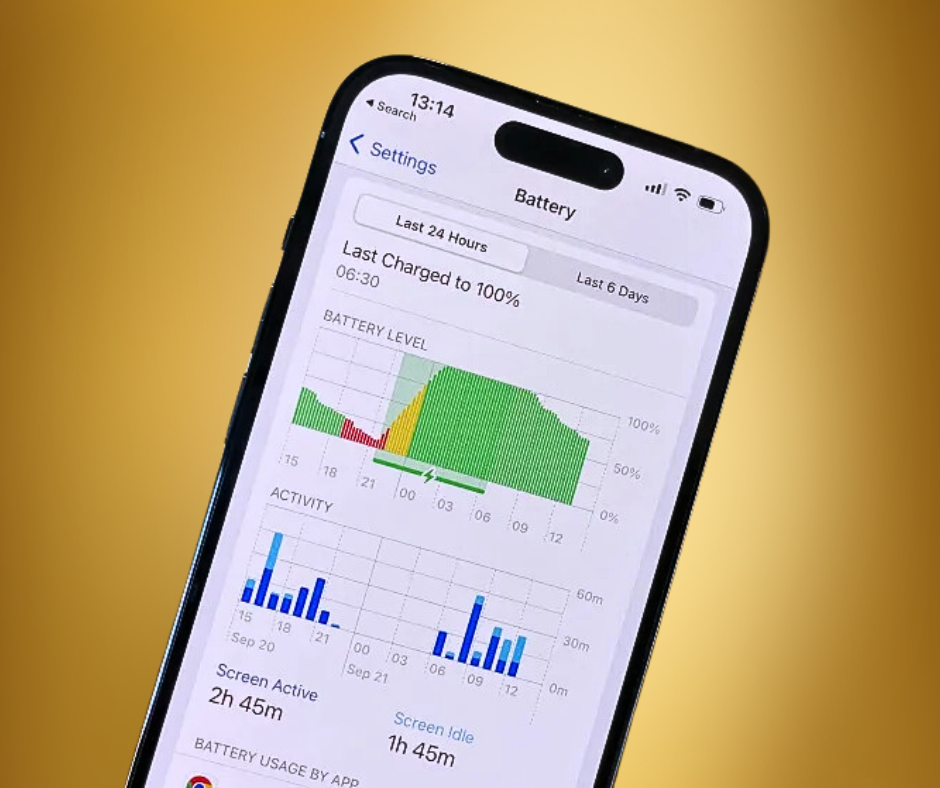
A sudden and unexplained decrease in battery life can be a red flag that something is wrong. Malicious software running in the background can drain your battery faster than normal. To check if unusual battery drainage might be due to unauthorized activities:
- Go to “Settings.”
- Tap “Battery.”
- Review the list of apps and processes consuming battery power.
If you notice an unfamiliar app or an app that is consuming more battery than it should, it may be worth investigating further. This could be an indication that malware or unauthorized software is running in the background.
3. Review Cellular Data Usage
Hackers often exploit data to transfer information from your device to external servers. If you notice an unusual spike in your data usage, it could be a sign of unauthorized activity. Here’s how to monitor your cellular data usage:
- Open “Settings.”
- Tap “Cellular” or “Mobile Data.”
- Review the list of apps and their corresponding data consumption.
If you find an app using an excessive amount of data, especially if it’s an app you rarely use, this could indicate that your iPhone has been compromised.
4. Examine App Permissions
Apps on your iPhone request various permissions to access features and data, such as your camera, microphone, and contacts. If your iPhone has been hacked, you might find unfamiliar apps with excessive permissions. To review and manage app permissions:
- Open “Settings.”
- Scroll down and select “Privacy.”
- Tap on individual permissions, such as “Camera,” “Microphone,” or “Contacts.”
Check the list of apps that have access to these permissions. If you find any apps that you don’t recognize or that seem unnecessary, it’s advisable to revoke their permissions.
5. Check for Unfamiliar Apps
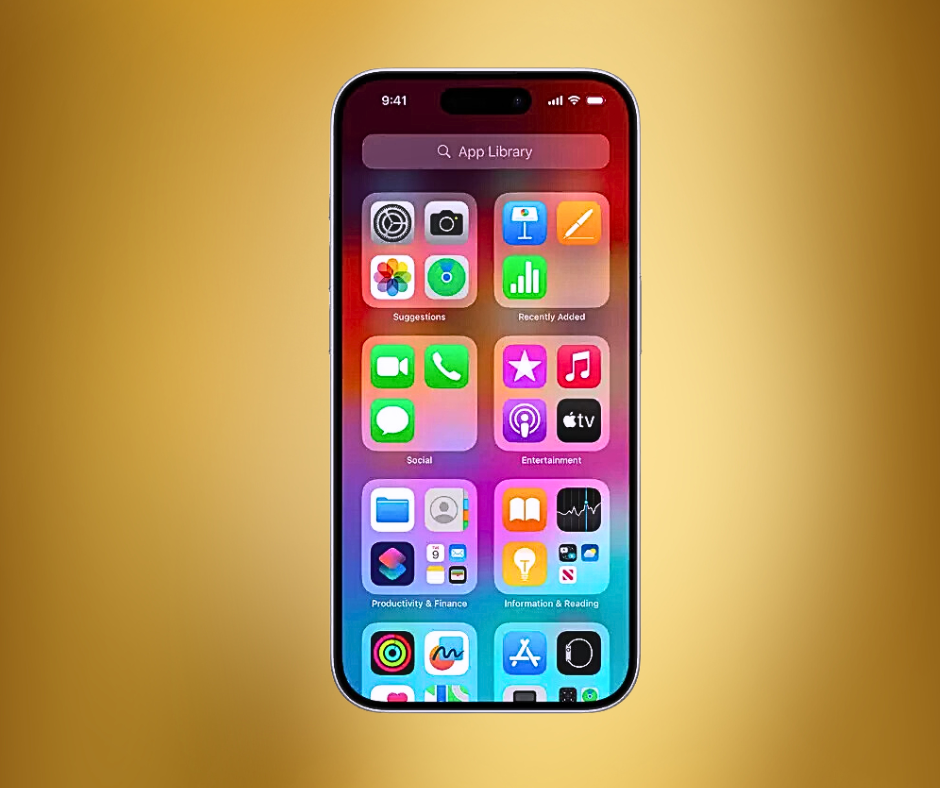
One of the most straightforward ways to detect if your iPhone has been hacked is to look for unfamiliar apps. Hackers may install malicious software disguised as legitimate apps on your device. To check for unfamiliar apps:
- Navigate to your iPhone’s home screen.
- Swipe through the app pages and folders, paying close attention to any apps you don’t recognize.
If you come across an unfamiliar app, tap and hold its icon, then select “Delete App” to remove it from your device. However, be cautious when deleting apps, as some apps may be pre-installed by Apple or other trusted sources.
6. Enable Two-Factor Authentication (2FA)
Two-factor authentication (2FA) is an extra layer of security that makes it more difficult for hackers to gain access to your Apple ID and related services. When 2FA is enabled, you will need to provide a second form of verification, usually a code sent to a trusted device, in addition to your password. To enable 2FA:
- Open “Settings.”
- Tap your name at the top (this will take you to your Apple ID settings).
- Select “Password & Security.”
- Choose “Two-Factor Authentication” and follow the prompts to set it up.
By enabling 2FA, you significantly reduce the risk of unauthorized access to your iPhone and other Apple services.
7. Run a Security Scan – How to Check if Your iPhone is Hacked in Settings
Although iPhones are generally secure, running a security scan can provide additional peace of mind. Several reputable antivirus and security apps are available on the App Store, which can scan your device for malware and other potential threats. To perform a security scan:
- Download and install a trusted security app from the App Store.
- Open the app and follow the instructions to run a full security scan of your iPhone.
The security app will identify and help you remove any threats, ensuring that your device remains secure.
8. Inspect System Performance
If your iPhone is behaving sluggishly, freezing, or crashing frequently, this could be a sign that your device is compromised. Hackers may have installed software that interferes with the normal operation of your phone. To check your system performance:
- Go to “Settings.”
- Tap “General,” then select “iPhone Storage.”
Here, you can see a breakdown of how your storage is being used. If an app you don’t recognize is taking up a large amount of space, or if your storage is unexpectedly full, this could be an indication of malware.
9. Check for Unusual Pop-ups and Ads
Frequent, unsolicited pop-ups or ads appearing on your iPhone could be a sign of adware or other malicious software. While browsing the internet, encountering the occasional ad is normal, but if you start seeing ads in places you typically wouldn’t, such as your home screen or when using apps that don’t normally display ads, this could be a cause for concern.
To deal with this:
- Clear your Safari history and website data by going to “Settings” > “Safari” > “Clear History and Website Data.”
- Consider installing an ad blocker from the App Store to reduce exposure to potentially malicious ads.
10. Reset All Settings
If after performing all the above steps you still suspect that your iPhone has been hacked, resetting all settings might be a necessary step. This will reset your iPhone’s settings to their default state, but won’t delete your data. To reset all settings:
- Go to “Settings.”
- Tap “General.”
- Scroll down and select “Reset,” then “Reset All Settings.”
This process will restore all system settings to their defaults, which can help to remove any changes made by a hacker.
Final Verdict
The security of your iPhone is paramount, and knowing how to check if your iPhone is hacked in settings is an essential skill for any iPhone user. By following the steps outlined in this guide, you can take proactive measures to protect your device from hackers and ensure your personal information remains secure.
Always remember to keep your software up to date, monitor your device’s performance, and be cautious of unusual activity. In the digital age, vigilance is your best defense against potential threats. By staying informed and taking the necessary precautions, you can enjoy the many benefits of your iPhone without compromising your security.
People Also Loved To Read – OnePlus Open Apex Edition: Unboxing and Price Reveal
For news updates, visit – Daily News 24×7